Settings
How Salvo behaves on this server: language, performance, resource limits, databases, retention, alerts, new destinations, restore and updates. Only what Salvo already does shows up here.
● available cPanel and DirectAdmin.
The ? icon on the screen's top bar opens this page.
On the screen
Settings, in the menu.
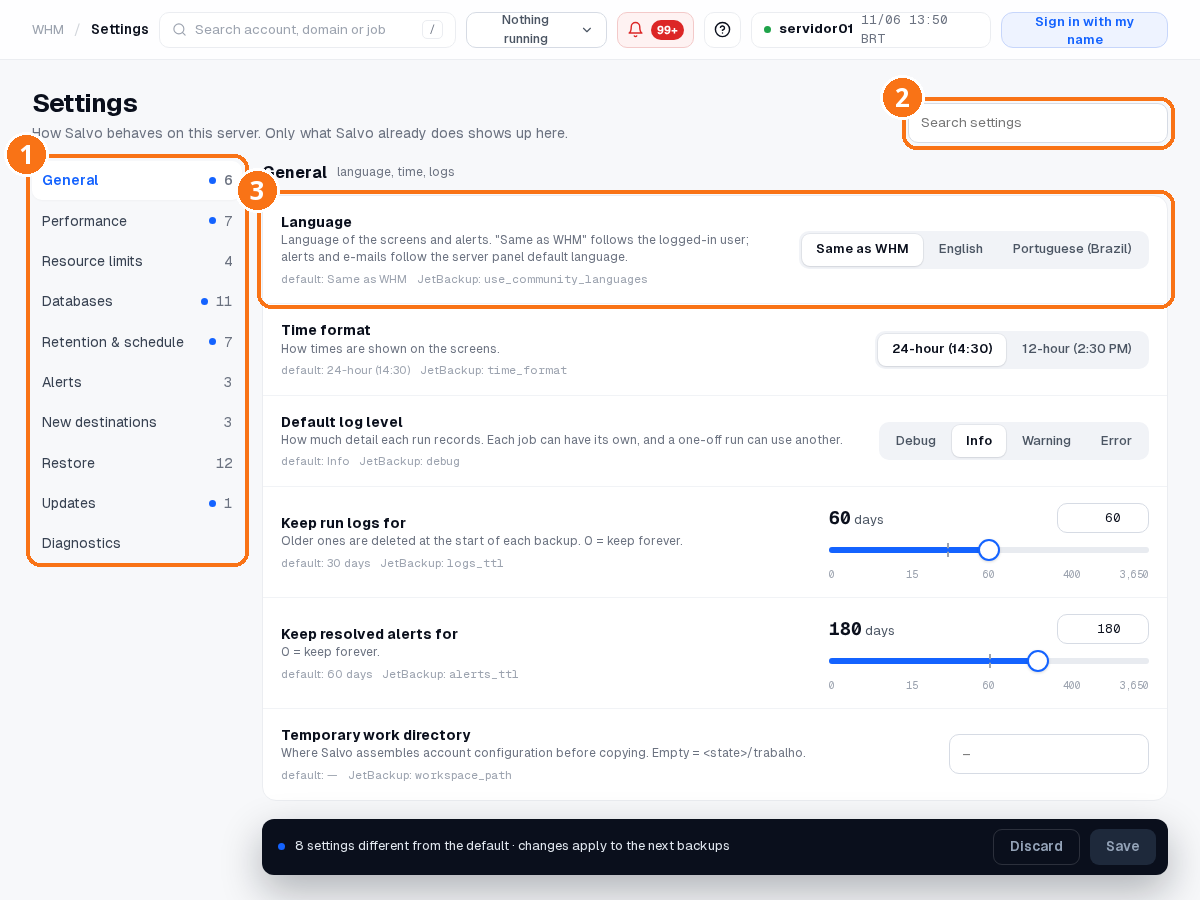
- The sections.
- Search settings.
- A setting: the name, the help, the default and the JetBackup name.
On the left, the sections (a blue dot marks a section with some value off the default); at the top, Search settings looks in all of them (name, help and the name of the equivalent JetBackup option).
Each row has the name, the help, the default and, when there is one, the equivalent JetBackup name and the See our labs link (the value that was measured). Numbers are set with the slider or the box; choices, with the buttons.
Nothing is saved right away. Changes are marked and the bottom bar shows N unsaved changes; Save saves them all at once (or none: a value out of range shows with the reason under its row) and Discard goes back. Changes apply to the next backups. Changing the language or the time format reloads the page.
The sections
General
| Setting | Default | |
|---|---|---|
| Language | Same as WHM | screens and alerts; on Same as WHM, screens follow the logged-in user and alerts and e-mails follow the panel's default language |
| Time format | 24-hour | |
| Default log level | Info | each job can have its own (see Logs) |
| Keep run logs for | 30 days | 0 = keep forever |
| Keep resolved alerts for | 60 days | 0 = keep forever |
| Temporary work directory | empty | where Salvo assembles the accounts' configuration; empty = <state>/trabalho |
| Account email as its own part | Off; On in a new installation (0.8.24) | on, the account backup keeps each account's email apart from the website files, which lets email have its own schedule (see Schedules). The first copy after turning it on reads the mailboxes in full once and writes almost nothing. A server that already copied accounts stays as it was |
Performance
These are the manual settings: they apply while the server has no default performance profile, and to jobs with no profile (0.7.62).
| Setting | Default | |
|---|---|---|
| Accounts at the same time (default for new jobs) | 3 | each job can have its own |
| Account files and databases at the same time | Off | on, an account's databases start with its files when the job has a free slot and the load is under the limit |
| Load limit | 0 (no limit) | above this load (1-minute load), the backup waits before the next account, up to 30 min; the number of cores is a good value |
| Measure website response time during the backup | On | see Follow a backup |
| Files at the same time in each account | 0 (one per core) | fewer eases servers with little CPU |
| Maximum run time | 0 (no limit) | past this, the backup stops and the remaining accounts fail |
| Backup priority | Low | websites go first (nice 19 and idle ionice) |
| Change journal | Measure only (shadow) | on, the backup walks only the folders that changed; see Change journal (0.7.136) |
Resource limits
| Setting | Default | |
|---|---|---|
| CPU limit | 0 (no limit) | 100% = one full core |
| Memory limit | 0 (no limit) | if exceeded, the system stops the backup, never the database or the websites |
| Disk read limit / Disk write limit | 0 (no limit) | in MB/s |
Databases
| Setting | Default | |
|---|---|---|
| Dumps at the same time (one table per file) | 3 | |
| Small MyISAM tables in batches | On | up to 40 per dump, each still with its own file |
| Warn about views MySQL cannot read | On | off, the database ends as a success and the skipped views stay only in the log |
| Differential on MyISAM tables | Off | an unchanged MyISAM table is not copied again; turn it on after seeing the analysis |
| Full backup of each database every | 7 days | the full one checks that what was reused came out identical |
| Copy MyISAM without a lock when it is not changing | On | |
| Give up on a table locked by another session after | 60 s | |
| Split a MyISAM table larger than | 128 MB | 0 = never split |
| Dump max packet | 1 GB | |
| mysqldump path / mysql path | empty | empty = the system one |
The details of each are in Database servers.
Retention & schedule
| Setting | Default | |
|---|---|---|
| Manual backups to keep per job | 0 (all) | the latest of each item is never deleted |
| Account removed from the server: backups to keep | 0 (off) | see Deleted accounts |
| Account removed from the server: keep for | 0 (no limit) | counted from the day Salvo saw the account no longer exists |
| Backup window | 00:00 – 06:00 | drag the ends of the strip; it may cross midnight |
| Destination maintenance once a day | On | outside the window and only when nothing is running; off = by hand only, in Maintenance |
| Compact the backup index every | 24 hours | 1 to 24; see below (0.7.45) |
| Catch up a missed backup within | 12 hours | if the server was down at the scheduled time |
Compact the backup index every. Each backup leaves small files in the destination's index, and every restore has to read all of them before it starts. Salvo merges those files from time to time. 24 hours suits backing up once a day. With an hourly or every-30-minutes job (the mail one, for instance), a smaller value, such as 1 hour, merges the index at the end of each job: restores open faster and the job takes a few seconds more. It deletes no data. It applies to every destination of the server, from the next job or the daily maintenance on. Use it when restores are slow to start on a server with frequent jobs. The job's log shows closing: index compacted; the restore's log, repository opened with the times.
salvo config --set indice_epoca_horas=1
Alerts
| Setting | Default | |
|---|---|---|
| Account without a new backup after | 26 hours | |
| Warning: destination low on space | 10% free | |
| Error: destination almost full | 5% free |
New destinations
| Setting | Default | |
|---|---|---|
| Compression for new destinations | Fast | |
| Local cache for new destinations | 256 MB | per account; 0 = no cache |
| Keep each account's cache between runs | No | see Local cache |
Restore
| Setting | Default | |
|---|---|---|
| cPanel packages folder | /home | where the screen looks for cpmove-ACCOUNT.tar.gz |
| Restore priority | Low | |
| Restore queue: wait for the load to drop | 0 (does not wait) | |
| Restores at the same time | 3 | |
| Restore queue: disk use limit | 85% | |
| Keep safety copies for | 7 days | the copy of what was there before replacing |
| How to restore a whole account from a backup | Two tracks (fastest) | or cPanel package |
| Bring the account's whole backup before restoring | Yes | |
| Stream database restores | Yes | |
| Tables imported at once when restoring a database | 2 | |
| Storage connections when restoring an account | 8 | |
| Parallel reads when restoring | 8 |
Downloading the whole account
Three settings, also in Restore, apply to building the whole-account package to
download: the cpmove on cPanel, DirectAdmin's own backup
(user.root.ACCOUNT.tar.zst, which comes back through Admin Backup/Transfer) on DirectAdmin. They are the same on
both panels.
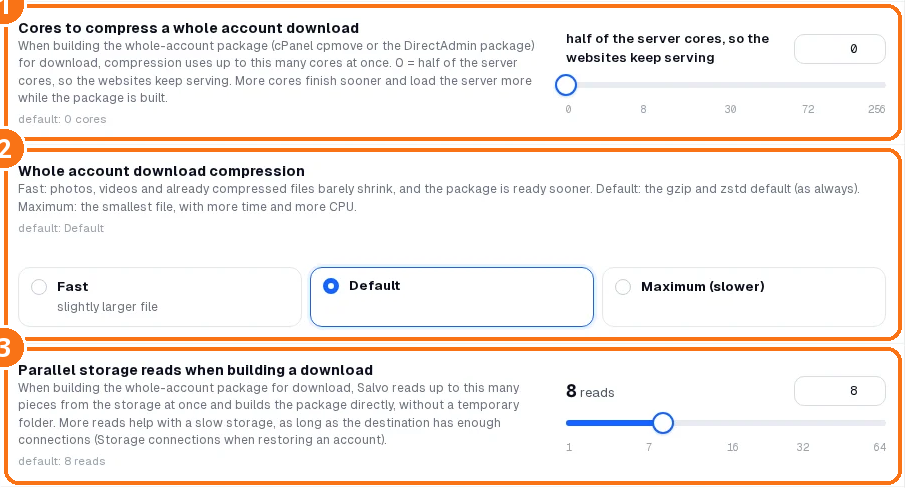
| Setting | Default | ||
|---|---|---|---|
| 1 | Cores to compress a whole account download | 0 = half of the server cores | so the websites keep serving. More cores finish the package sooner and load the server more while it is built |
| 2 | Whole account download compression | Default | Fast: the package is ready sooner and the file is a bit larger (photos, videos and already compressed files barely shrink). Default: as always. Maximum: the smallest file, with more time and more CPU |
| 3 | Parallel storage reads when building a download | 8 (1 to 64) | helps with a slow storage, as long as the destination has enough connections (Storage connections when restoring an account) |
In the tests we measured, on an 8-core production server, a ~13 GB account with 51 databases was ready to download in 5:42m with the defaults, using 2 to 2.6 cores; a ~5 GB one, in 1:44m. Fast compression produced a file about 5% larger.
salvo config --set download_nucleos=4 --set download_compressao=rapida --set download_paralelo=8
Updates and Diagnostics
Updates shows the installed and the published version and has Automatic updates (default: Only notify); see Updates. Diagnostics has Debug mode (for 1 hour, 24 hours or 7 days) and the Diagnostic bundle; see Diagnostics.
On the command line
# every setting, with its value
salvo config --list
# change (--set can repeat; same validation as the screen)
salvo config --set idioma=pt --set prioridade=normal --set janela_inicio=22:00
Each setting's name (the key) shows in config --list. Changes from the command line also go to the Audit.
Next: Administrators.