Performance profiles
How the backup shares the server with the websites: how many accounts at a time, how many files in each account, how many cores, the disk priority, the read limit and when to wait before starting the next account, so the websites do not get slow. A profile puts all of this under one name; the server default applies to every job that does not choose another.
● in testing ● available in 0.7.62 0.7.63: Server › Profiles menu cPanel and DirectAdmin.
The ? icon on the screen's top bar opens this page.
With no default profile, Salvo uses the manual settings in Settings › Performance, exactly as before profiles. An updated server only starts using a profile when the admin picks one.
On the screen
Server › Profiles (up to 0.7.62, Backup › Performance), with three tabs: Salvo profiles, My profiles and Schedule.
Salvo profiles
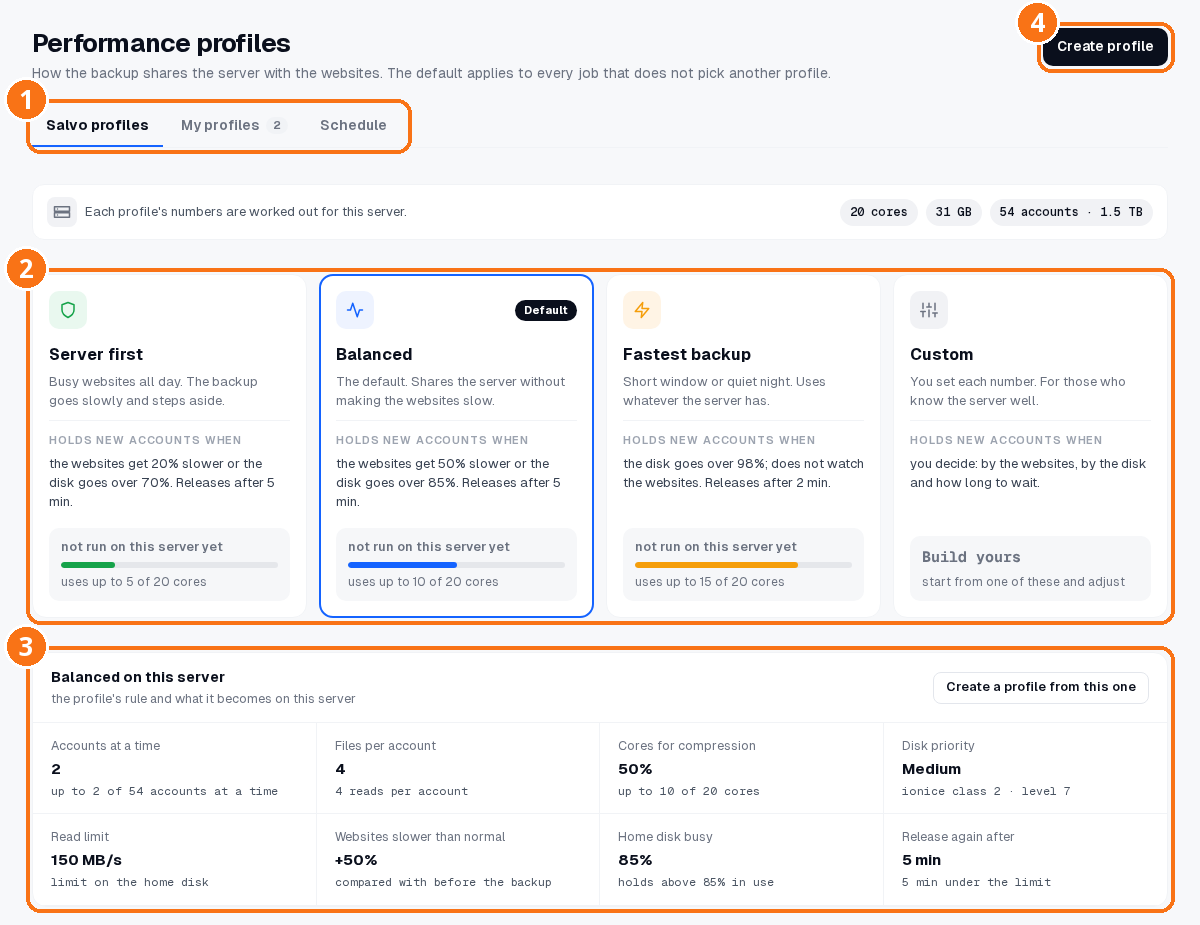
- The tabs.
- The ready profiles and Custom (Build yours: start from one of them and adjust).
- The chosen profile on this server, setting by setting.
- Create profile.
Three ready profiles, which do not change. Each one shows what each rule becomes on this server (for instance, uses up to 4 of 16 cores and 1 account at a time) and the time per night measured with it: the median of the last 3 scheduled runs with that profile. Before that, not run on this server yet.
| Server first | Balanced | Fastest backup | |
|---|---|---|---|
| What it is for | websites busy all day; the backup goes slowly and steps aside | the default; shares the server without making the websites slow | short window or quiet night; uses whatever the server has |
| Accounts at a time | 1 | 2 | 4 |
| Files per account | 2 | 4 | 8 |
| Cores | 25% | 50% | 75% |
| Disk priority | low | medium | normal |
| Read limit | 60 MB/s | 150 MB/s | whatever the disk gives |
| Holds new accounts when the websites get | 20% slower | 50% slower | not watched |
| … or the home disk goes over | 70% | 85% | 98% |
| Releases again after | 5 min | 5 min | 2 min |
Use as default makes it the profile of every job that follows the default, from the next account on. Create a profile from this one opens the editor with the same settings.
My profiles
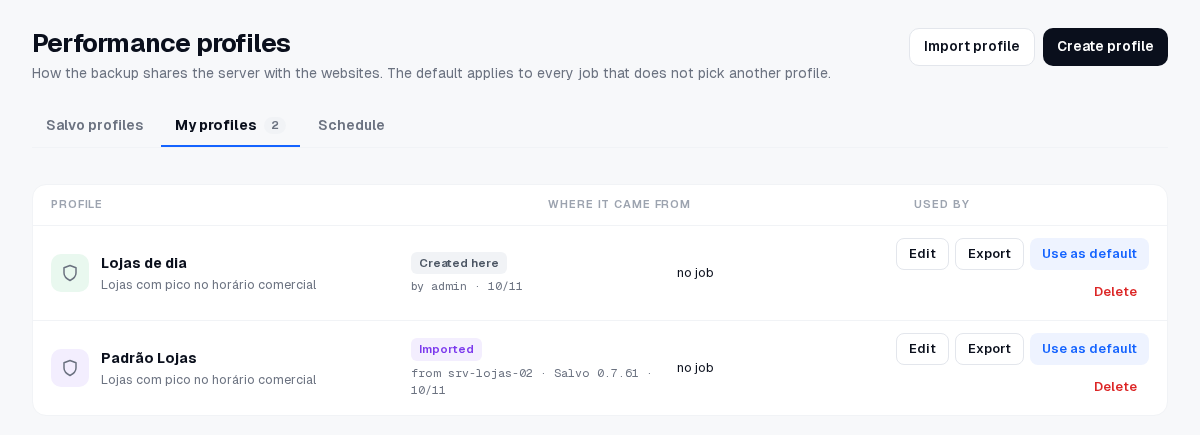
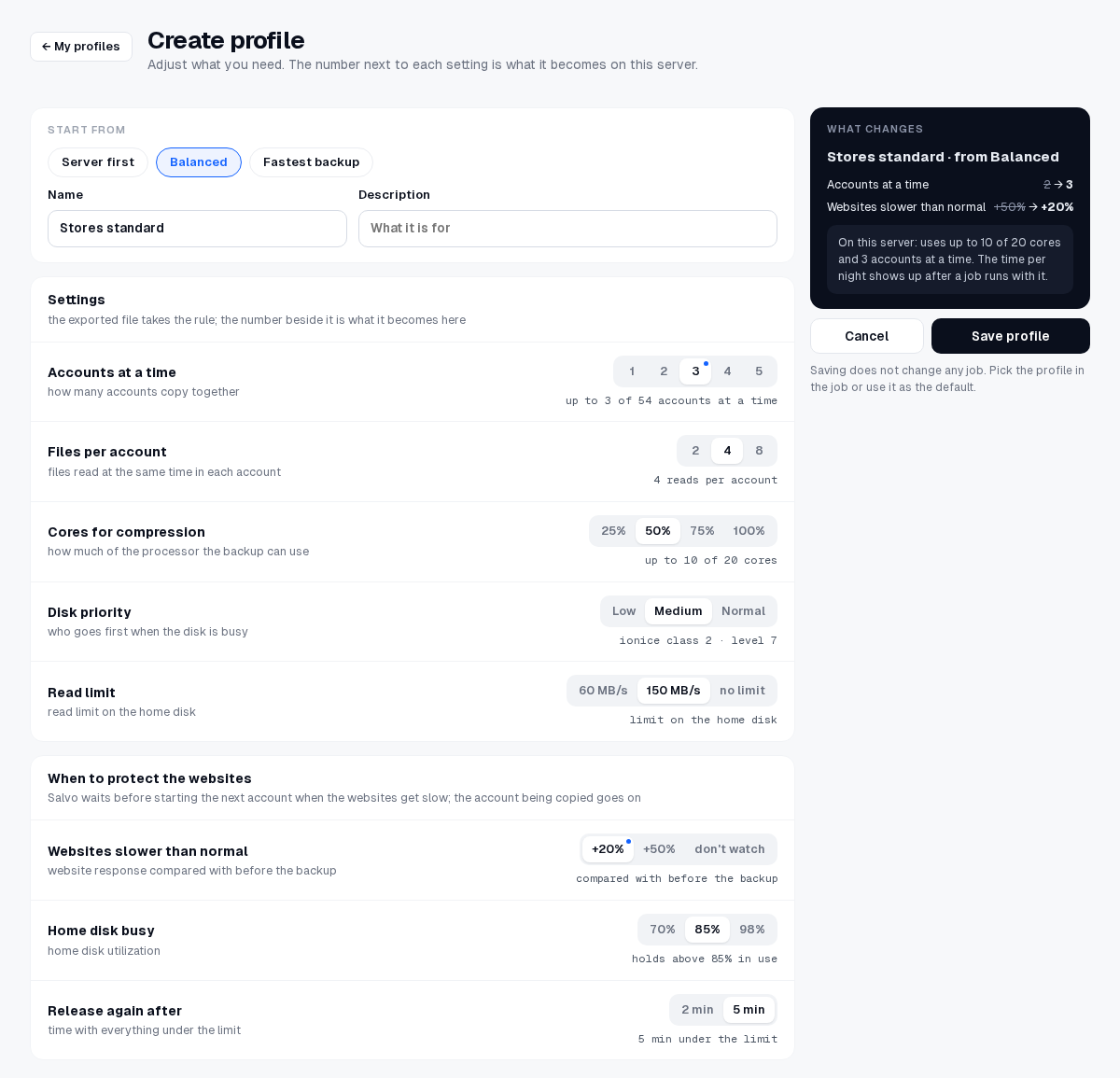
- Create profile: a name, a description, the starting profile and each setting; the number next to each one is what it becomes on this server. The What changes box shows what differs from the starting profile. Save profile changes no job.
- Edit profile: if a job uses the profile, the change applies from the next account.
- Delete: only a profile no job uses and that is not the default.
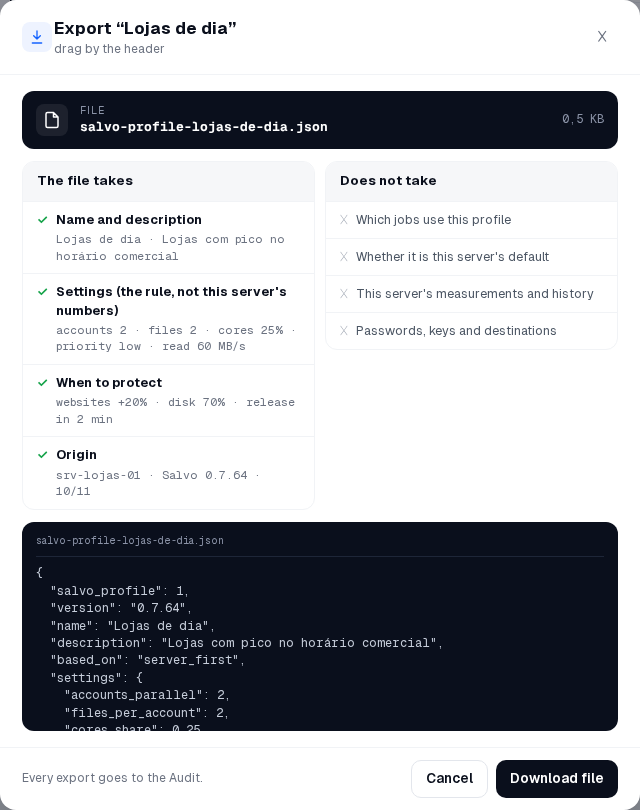
- Export: downloads the
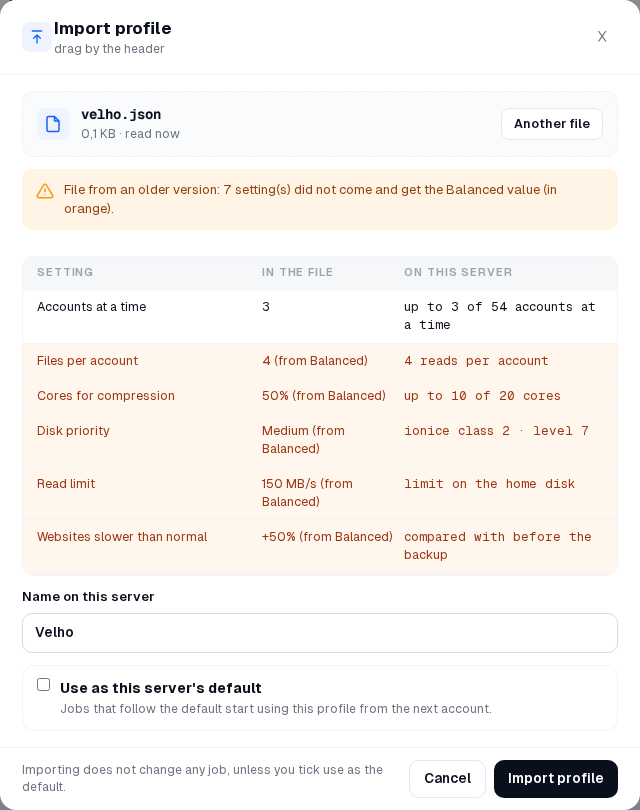
salvo-profile-<name>.jsonfile, with the rule, never this machine's numbers. The file takes no jobs, default, measurements, history, passwords, keys or destinations. Every export goes to the Audit. - Import profile: choose the file exported on another server. The preview shows where it came from and each
setting, in the file × on this server.
- A file from an older version fills what is missing with Balanced, marked in orange.
- A name that already exists here becomes (2).
- An invalid file shows the reason, with the line, and nothing is imported.
- Importing changes no job, unless you tick Use as this server's default.
Schedule
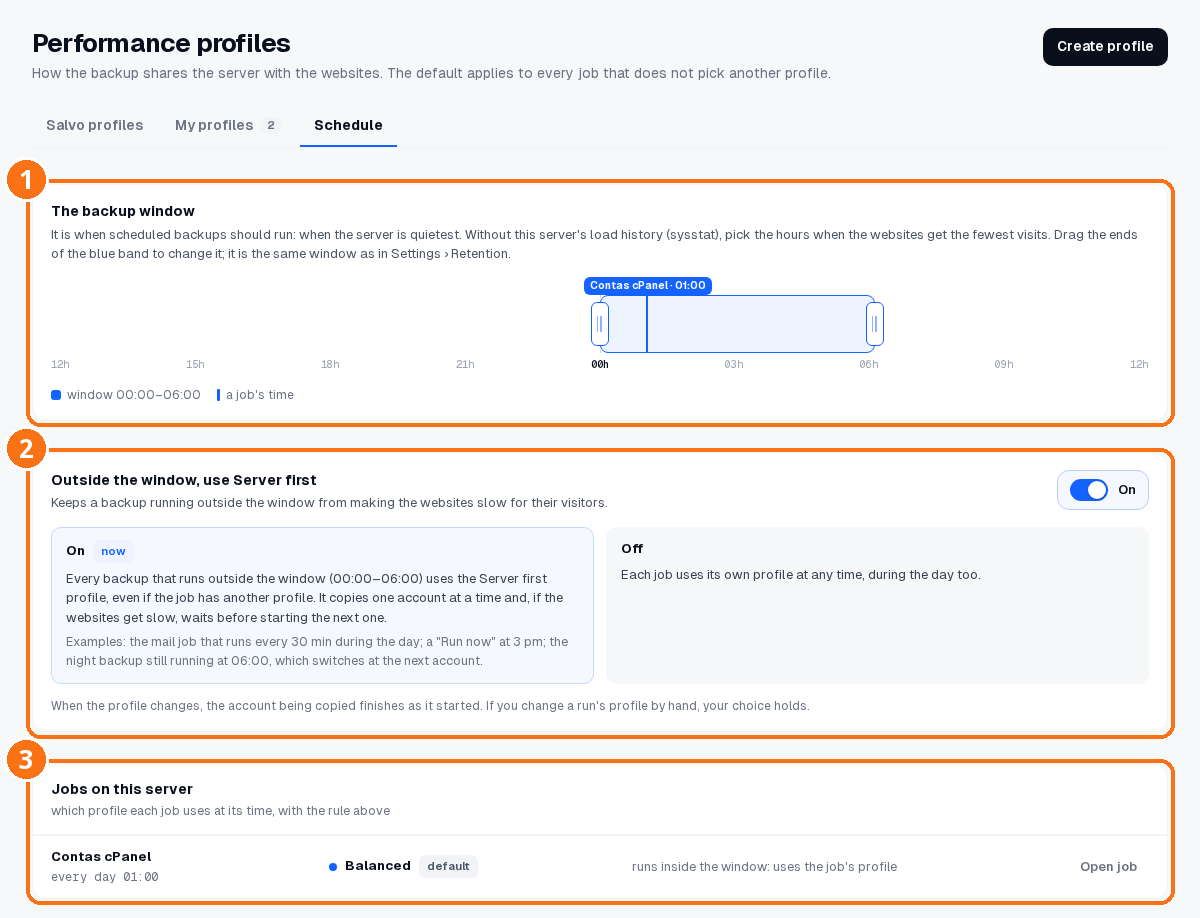
- The backup window.
- Outside the window, use Server first: what happens with the switch on and off, with examples.
- Jobs on this server: the profile each job uses at its time.
The 24-hour strip is the same as in Settings › Retention & schedule: the average load of each hour over the last 7 days, the jobs marked at their time (in red, the ones outside the window) and the draggable ends of the backup window; Save window saves the Settings window (and goes to the Audit).
The Outside the window, use Server first switch (off by default) keeps a backup running outside the window from making the websites slow for their visitors: inside the window, each job's profile applies; outside it, every job runs with Server first (for instance, the mail job every 30 minutes during the day, or a Run now at 3 pm). Off, each job uses its own profile at any time. Since 0.7.63 it applies during the run: a backup that goes past the end of the window switches to Server first by itself at the next account (and goes back to the job's profile if it enters the window). A change someone makes in the Profile menu wins until the end of the run.
A job's profile
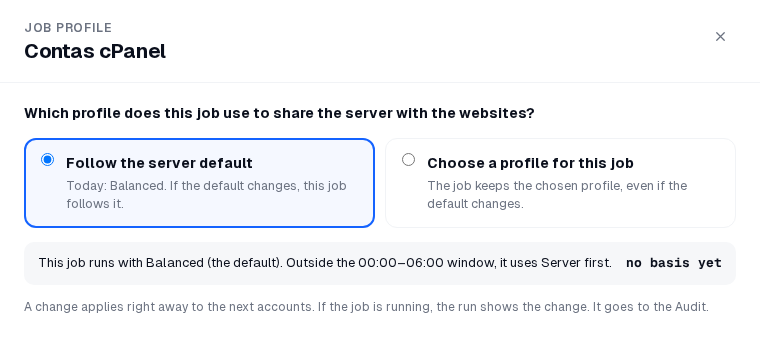
In the job's drawer, Profile: Follow the server default (the job follows if the default changes) or Choose a profile for this job (the job keeps it, even if the default changes). A change applies right away to the next accounts and goes to the Audit.
The system jobs (the server configuration and Salvo's own) always run with the manual settings: they take seconds.
During the backup
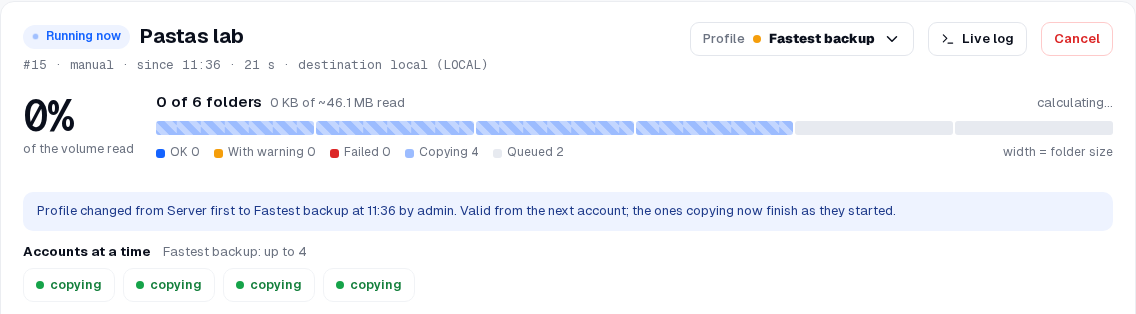
On the Running now card of Follow a backup:
- The profile in use, and the Profile menu to change it. The change applies from the next account; the ones copying now finish as they started.
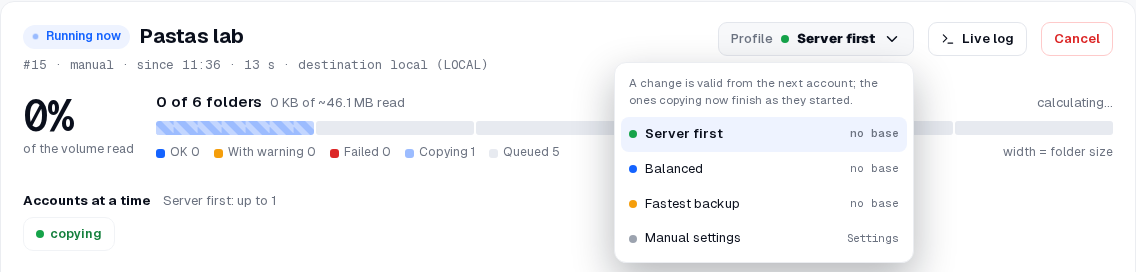
- Holding new accounts · not an error: the websites got slower than before the backup, or the home disk went over the profile's limit. The account being copied goes on; the held slots show on the card, and Salvo releases them after a few minutes under the limit.
- The charts of the website response (the grey dashed line is the normal, measured before the backup) and of the home disk, minute by minute.
With a profile in use, the Load limit in Settings does not apply: it belongs to the manual settings.
On the command line
# the Profiles screen: the Salvo profiles, yours, the default and the time per night
salvo profiles [--json]
# one profile and what each setting becomes on this server
salvo profile-show --profile P
# create, edit, delete
salvo profile-create --name "Stores standard" --from P [--accounts 1-5] [--files 2|4|8] [--cores 25|50|75|100] \
  [--priority low|medium|normal] [--read-limit 0|60|150] [--sites-slower 0|20|50] [--disk-busy 70|85|98] [--release 2|5]
salvo profile-edit --profile P [--name N] [same settings]
salvo profile-delete --profile P
# export and import (without --apply it only shows what the file brings)
salvo profile-export --profile P --out profile.json
salvo profile-import --file profile.json [--name N] [--default] --apply
# the server default (manual = the Settings › Performance values) and the schedule
salvo profile-default --profile P|manual
salvo profile-off-window on|off
# a job's profile, or change the profile of a running run
salvo job-profile --job N --profile P|default
salvo run-profile --execution N --profile P|manual
Everything goes to the Audit.