Backup jobs
A job says what is copied, where to (the destination) and when (the schedules). There are five kinds:
- Accounts: each account with what is inside it (site, mail, databases, DNS, SSL). The default and the most common.
- Databases: the server's MySQL/MariaDB databases, including those no account owns and those on a remote MySQL server.
- Folders: server folders outside the accounts, like
/etcor/opt. - E-mails (0.5.86): the accounts' mailboxes, wherever they are (on this server or on a cPanel mail node), only those that changed at each run; it can run every 30 minutes. See Mail center. It has its own E-mails tab (0.5.117), with the mail numbers, the latest runs, the new and deleted messages per run and the load of the server and of the node.
- Server configuration (0.5.126): the server's own configuration, service by service (Exim, Apache, PHP, MySQL, DNS, SSH, firewall…), with what changed between versions. See Server configuration.
Salvo also has a job of its own, Salvo configuration (marked system): it keeps Salvo's database and vault, encrypted with the recovery key, and cannot be deleted.
● available ● tabs by kind: 0.5.31 ● node databases: 0.5.47 ● schedule in Create job and schedules warning: 0.5.48 and 0.5.49 ● delete in the background: 0.5.55 ● MyISAM in batches: 0.5.70 ● edit and duplicate in the assistant, Run now at once: 0.5.109 cPanel and DirectAdmin (node databases: cPanel only).
On the screen
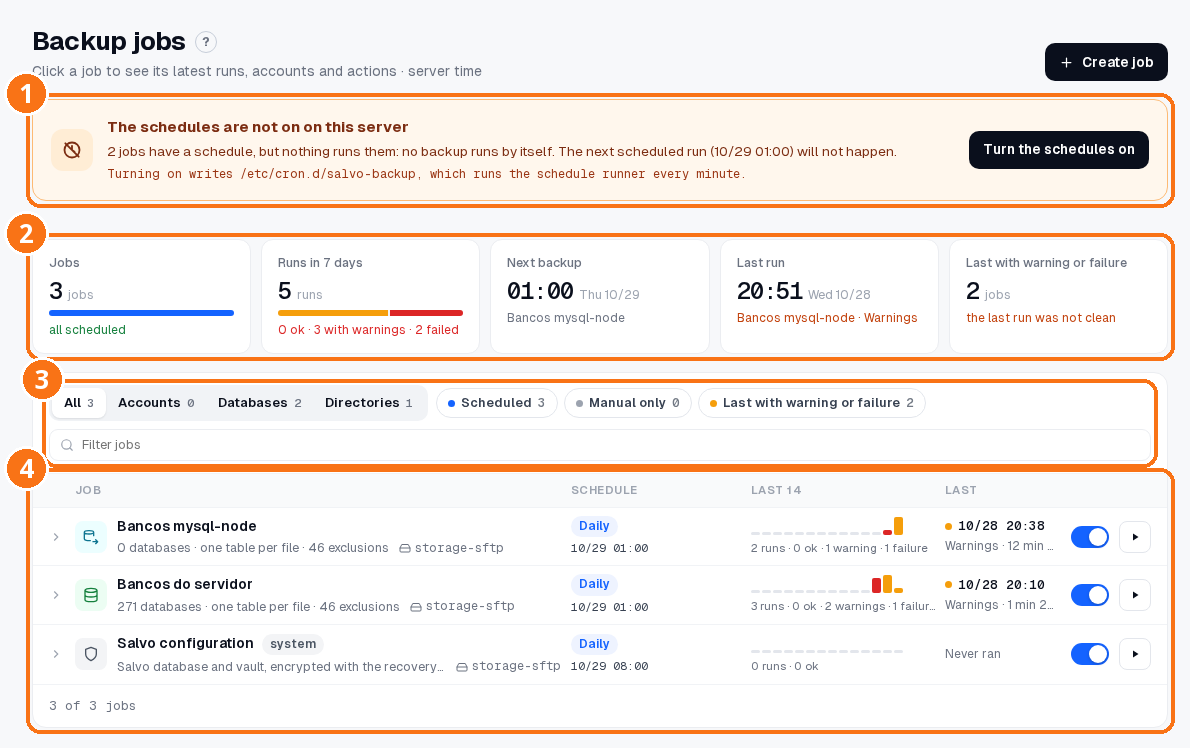
BACKUP › Backup jobs. From top to bottom:
- The schedules warning, only when a job has a schedule and nothing runs them: The schedules are not on on this
server (there is no
/etc/cron.d/salvo-backup) or The schedules stopped running on this server (the file exists, but the runner has not run for more than 3 minutes) or The cron of this server is stopped (0.5.108; then only starting the cron service fixes it). It says which next run will not happen, and Turn the schedules on writes the file, which runs the runner every minute. The same warning shows on the Dashboard; see Schedules. - The numbers at the top, which change with the tab: jobs, runs in 7 days, next backup and the last with a warning or failure. In Accounts: accounts covered (and how many are outside any job) and the typical duration. In Databases: protected databases and MyISAM tables (which lock during the copy). In Directories: folders, files and the average compression.
- The tabs All, Accounts, Databases and Directories, the filters Scheduled, Manual only and Last with warning or failure, and the search.
- The list: an icon for what the job copies (whole account, parts of the account, mail only, files only, databases, databases of a remote MySQL server, server folders, Salvo configuration; the name shows on hover), the schedule with its on/off switch, the Last 14 runs, the last one and Run now.
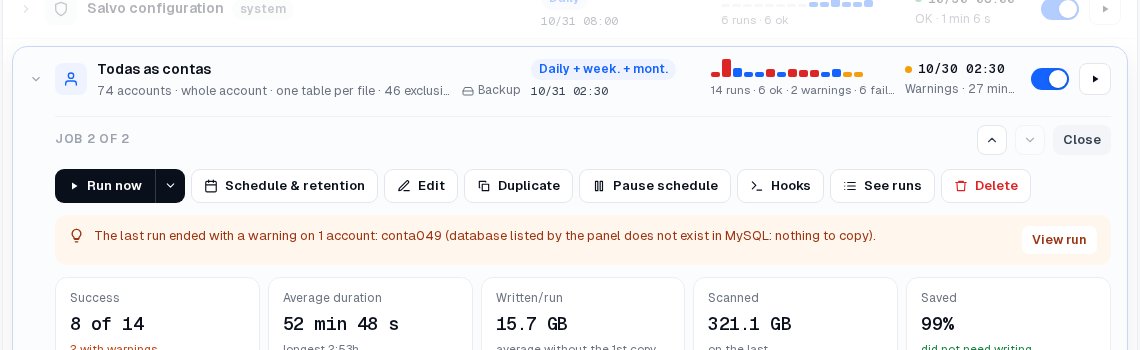
Clicking a job opens its details: the actions (Run now, Schedule & retention, Edit, Duplicate, Pause schedule, Hooks, See runs, Delete), the run summary, How it is set up, the Next runs, the Retention and, in a databases job, Restore a server database (see Restore a database).
Run now
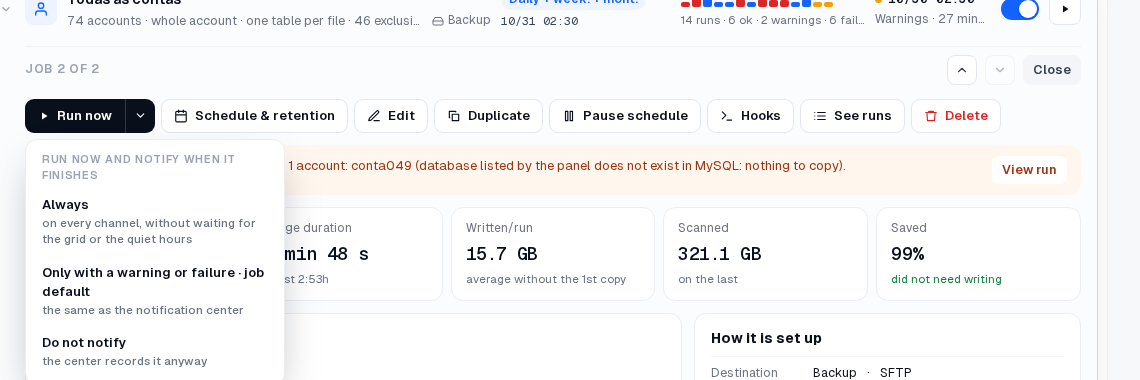
Run now (in the list or in the details) runs the job at once, with no window (0.5.109): the notice in the corner says it started and brings Follow. To pick the notice at the end for this run only, the small arrow beside the button opens Run now and notify when it finishes: Always, Only with a warning or failure or Do not notify (the job's default comes marked).
A job that never ran shows, in its details, Job ready… with Run the first copy now. That is where the assistant takes you after Create job.
A disabled button says why on hover (0.5.108): The job is already running: wait for it to finish or follow it in Runs, The job is disabled; Pause schedule, on a job with no schedule, and See runs, on a job that never ran, say it too.
Create and edit a job
Create job opens the assistant, in six steps on one line. Step 1 picks the kind: Accounts, Server databases, E-mails or Folders.
| Step | Accounts | Databases | E-mails | Folders |
|---|---|---|---|---|
| 1 · Protect | the kind of job | |||
| 2 | What to copy from each account: the 9 parts (panel configuration, site files, databases, mail, cron, DNS, SSL, database users, FTP), or a template: Full account, Mail only, Databases only, Files only | Which databases: From which MySQL server (when there is a node), then all, by rules or picked from the list | What goes in: whole mailboxes, contacts and calendar (the Dovecot indexes stay out) and where each account's mail lives | Which folders (/home stays with the account jobs) |
| 3 | Which accounts: all, by rules or picked from the list | How to copy: one file per database or one file per table, users and permissions, skip large databases | Which accounts: all or picked from the list | Leave out: exclusions, stay on the same disk, skip large files, Test on a sample |
| 4 · Destination | one destination per job, with its free space | |||
| 5 · Schedule | the same editor as Schedule & retention: days of the week or month, times per schedule, every N hours, after another job, dates. See Schedules. The E-mails kind starts with every 30 minutes (keeps 2 days) and one a day (keeps 30 days) | |||
| 6 · Review | the name, the summary and Advanced: accounts (or items, or mailboxes) at a time, suspended accounts, restore priority, retry the ones that fail, notify when finished and Hooks › Set up (scripts before and after the backup, 0.5.109; see Hooks) |
The Mail only template of step 2 opens the E-mails kind (0.5.109): the mail job copies only the mailboxes that changed and can run every 30 minutes. See Mail center.
Site files: default exclusions and yours
● available in 0.8.3 · drawer: 0.8.5 cPanel and DirectAdmin.
In step 2 of an accounts job (creating or editing it), the Site files card has the Default exclusions (logs, caches, trash) switch, on by default, a summary (N default · M yours) and Adjust exclusions… (0.8.5).
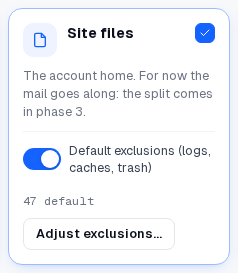
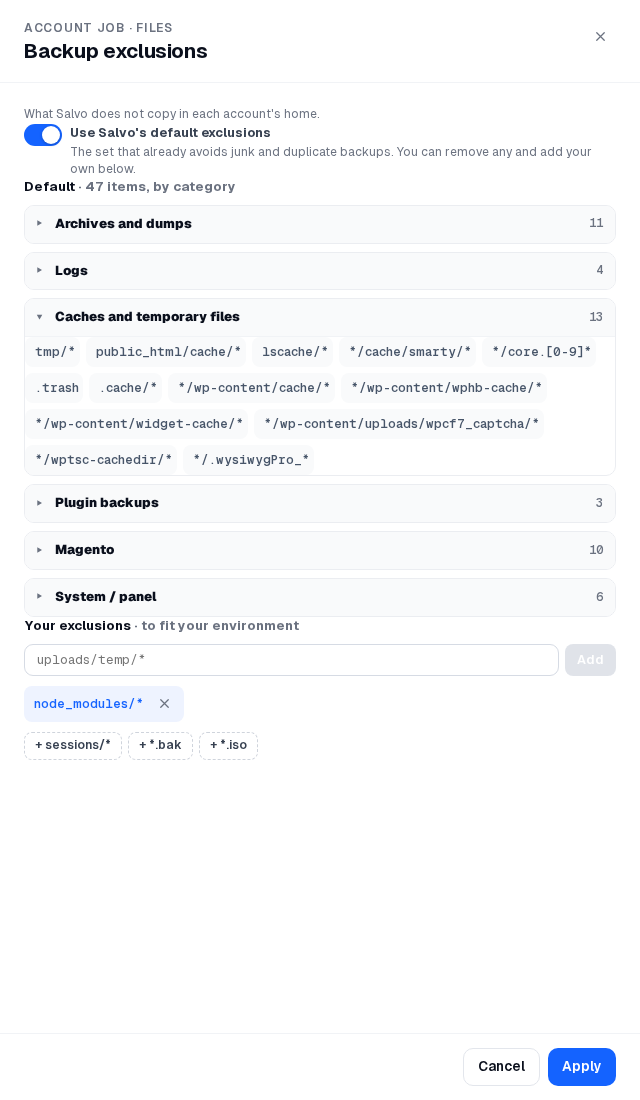
Adjust exclusions… opens the Backup exclusions drawer:
- Use Salvo's default exclusions: the list of what is not worth copying, grouped by category (compressed
files and dumps, logs, caches and temporary files, plugin backups, Magento, system / panel; on DirectAdmin, also a
DirectAdmin category). Each category opens and closes and shows how many items it has. Since 0.8.2 the caches
include
.cache/*. - Your exclusions: what changes from one environment to another, you adjust here. Type a folder or file in the field and Add, or use the shortcuts (+ node_modules/*, + sessions/*, + *.bak, + *.iso); the × on a chip takes it out. The paths are relative to the account home.
- Apply keeps the change in the job; Cancel drops it.
The default is a starting point: turn it off if you want to copy everything, and add what your sites keep that does not need a backup.
On the command line, the same list of the job:
# shows the job's exclusions
salvo job-exclusions --job ID
# adds and removes (relative to the home)
salvo job-exclusions --job ID --add 'node_modules/*' --remove '*.bak'
# back to the default list, or empty the list
salvo job-exclusions --job ID --default
salvo job-exclusions --job ID --clear
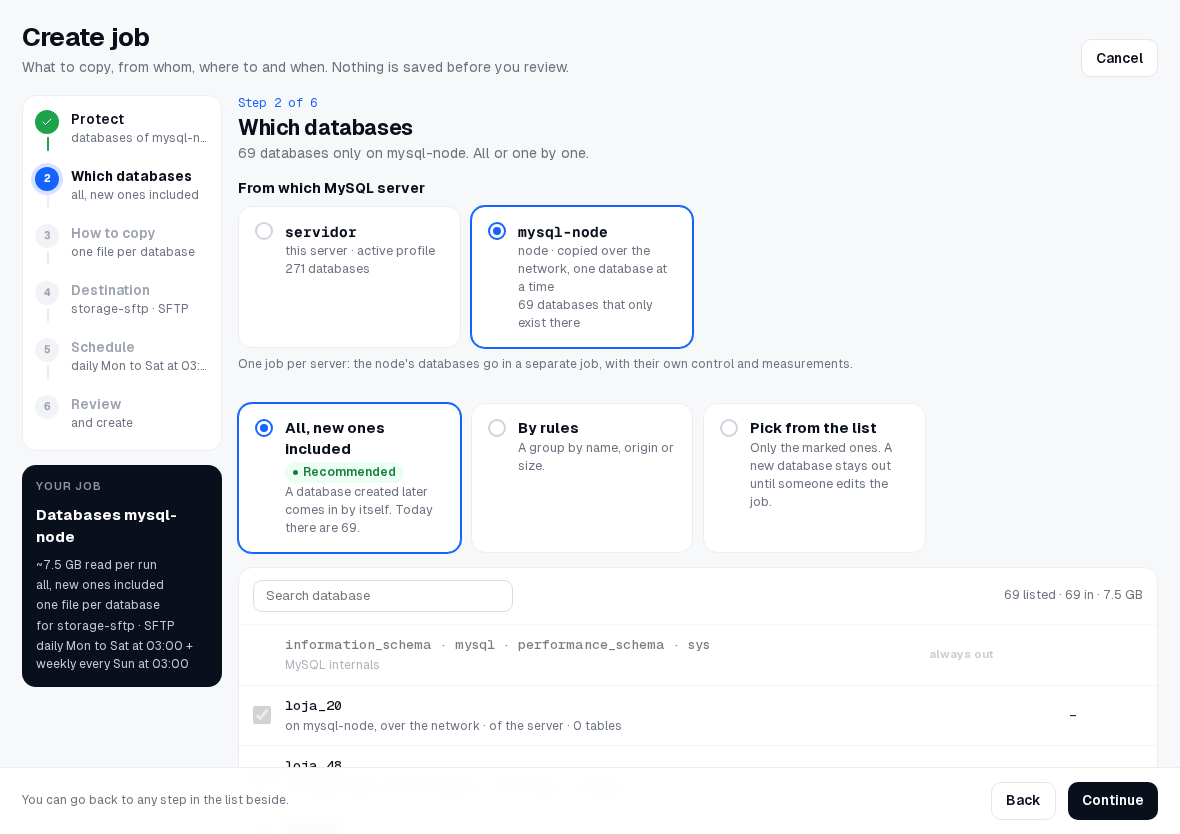
All, new ones included also takes the accounts and databases created later. Picked from the list, a new one stays out until someone edits the job.
After creating, the assistant opens the job, with Run the first copy now (0.5.109). Opened from another screen (Database servers, Accounts, the Dashboard or the account drawer), it comes in the right kind with the accounts or databases already checked (0.5.108); opened from the Mail center, creating or cancelling goes back there (0.5.109).
Picking accounts (and databases, 0.5.91): quick filters with counts, All, Checked, Not checked and, with a cPanel mail node, Mail here and Mail on node; Mark the visible ones works on the filter (every account of the node in two clicks). The ones already checked when the step opens come first, and checking another does not make the list jump. In Pick from the list, the checked ones show as chips with ×, and Clear unchecks them all. The search finds an account by its name or its domain.
Since 0.7.112, the list looks like the Accounts screen: each account with its name and main domain, the jobs it is already in (as badges) and a size bar. Sort by Checked, Name, Domain, Mailboxes (or Tables, for databases) and Size; filters by reseller and by plan; the header checkbox checks the visible accounts. In the mail job summary, the size shows as X in the mailboxes · each run reads only the ones that changed.
Edit and Duplicate, in the job's details, open the same assistant with the job filled in, for every kind,
accounts included (0.5.109; addresses #/jobs/editar/<id> and #/jobs/duplicar/<id>). It opens on step 2, with every
step reachable; the job kind does not change, and nothing is saved before Save changes (or Create job,
for the copy). An accounts job set to All, new ones included stays that way when edited or duplicated: an account
created later comes in by itself (up to 0.5.107, saving wrote today's list). The copy is named name-copia and starts
with its schedules off, so it never doubles the backups by surprise: turn them on in the Schedule step.
Databases of a remote MySQL server
On a cPanel with a remote MySQL, the Which databases step starts with From which MySQL server: this server (the active profile) or the node, copied over the network, one database at a time. It is one job per server: the node's databases go in a separate job, with their own control and measurements, and All means all databases of that server. Nothing is installed on the node.
In an accounts job, each account's databases are copied from where they are, the node included, with nothing to choose.
How many accounts at a time
Advanced › Accounts at a time applies to any destination, the single-repository one included (0.5.33). Inside an account, the databases use the job's free slots, the largest first (0.5.40).
With more than one account at a time, the queue starts with the accounts that took longest in the last good run (those with no previous run go first), so the slowest one is not left alone at the end (0.5.122). In Settings › Performance, Account files and databases at the same time (off by default) starts an account's databases together with its home, only on a free slot of the job and with the load below the limit (0.5.124). A job imported from JetBackup keeps the number of accounts at a time it used there (0.5.122).
One table per file: small MyISAM tables in batches
In the one table per file format, each table becomes its own backup file: restoring a table fetches only it, and a MyISAM table that has not changed is not dumped again. The cost was opening one dump per table, which weighs on a server with thousands of small MyISAM tables. Since 0.5.70, small MyISAM tables copied without lock come out together in one dump (up to 40 at a time), and each one is still its own file, byte for byte equal to the dump of that table alone (0.5.71). Locked, large and unchanged tables still go one by one. A table that changes during the copy is detected, and the database is copied again with a lock on it.
In the lab, the full copy of 271 databases with 13 thousand small MyISAM tables went from 19 min 22 s to 2 min 28 s.
Settings › Databases › Small MyISAM tables in batches (one table per file), on by default.
Views MySQL cannot read
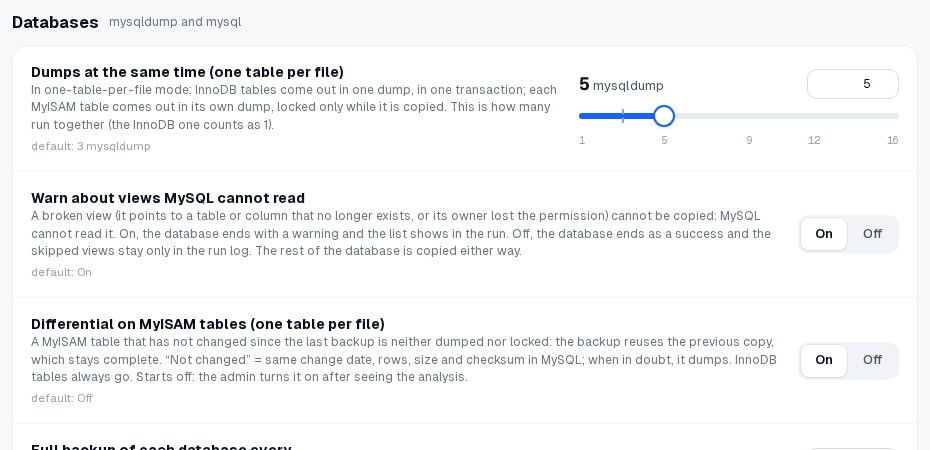
A broken view (it points to a table or column that no longer exists, or its owner lost the permission) cannot be copied: MySQL cannot read it. The database comes out without the view; the rest is copied (0.5.51). In Settings › Databases › Warn about views MySQL cannot read (0.5.61, on by default):
- On: the database ends with a warning, and the list of views shows in the run.
- Off: the database ends as a success, and the skipped views stay only in the run log.
A database that ended with a warning only because of a view counts as backed up in Database servers.
Delete a job
Delete asks for the job's name typed in and offers two options:
- Delete only the job (recommended): removes the job and its schedule. Backups already made stay in the destination and stay available for restore.
- Delete the job and its backups: frees space in the destination. Locked backups stay. Cannot be undone.
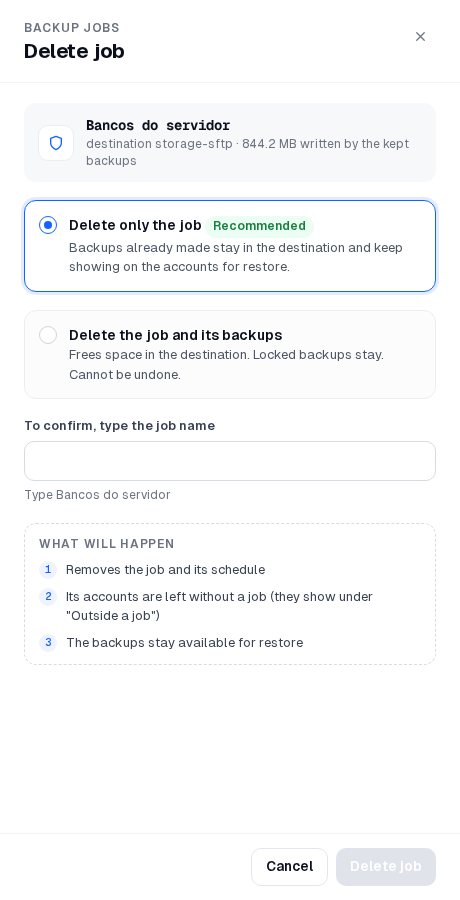
With the backups, the work runs in the background: the window closes at once, a notice brings Follow, the job shows Deleting… and the progress shows in Runs (filter Maintenance) and in the activity center. The job leaves the list when it finishes.
On the command line
# the numbers at the top of each tab (accounts, databases, folders); warns if the schedules do not run
salvo jobs-summary [--json]
# a job as the screen opens it
salvo job-show --job N [--json]
# per run: the job's accounts, databases or folders
salvo job-accounts --job N [--last 1] [--json]
salvo job-databases --job N [--last 14] [--json]
salvo job-directories --job N [--last 8] [--json]

# turn the schedules on (writes /etc/cron.d/salvo-backup); --show only shows
salvo schedules-enable [--show]

# create an accounts, databases or folders job
salvo job-add --name "Accounts" --destination ID --all-accounts
salvo job-add --name "Server databases" --destination ID --kind databases --all-databases
# a job for the node's databases: the "server" rule with the WHM profile name (check first with selection-preview)
salvo selection-preview --kind databases --rules '{"mode":"rules","rules":[{"field":"server","effect":"include","values":["PROFILE"]}]}'
salvo job-add --name "Node databases" --destination ID --kind databases --rules '{"mode":"rules","rules":[{"field":"server","effect":"include","values":["PROFILE"]}]}'

# copy every table in this run (the cost of a first copy), without creating another job
salvo run --job N --full-databases
# small MyISAM tables in batches: sim (default) or nao
salvo config --set banco_lote=nao
# clear the "always dump whole" and "copy with lock" lists of a job's databases (marked by mistake)
salvo database-differential-reset --job N [--database DB]
# the broken views warning: sim (default) or nao
salvo config --set banco_aviso_views=nao

# create a mail job (every account, or --account C ...); it is created with no schedule: use job-schedule
salvo job-create --name "E-mails" --destination ID --mail

# edit an accounts job (only what you pass changes); --all-accounts goes back to "All, new ones included"
salvo job-edit --job N --all-accounts
salvo job-edit --job N --name "Accounts" --destination ID --parallel 4

# duplicate (without schedule), pause or resume the schedule
salvo job-duplicate --job N --name "Copy"
salvo job-pause --job N [--resume]
# delete only the job, or with its backups (in the background: follow it in runs)
salvo job-delete --job N --confirm "JOB NAME" [--with-backups]
A job's schedule from the command line is in Schedules.
Next: Schedules.